The following guide will walk you through the process of connecting and configuring SSLCOMMERZ to enable payment collection through your application.
- To connect SSLCOMMERZ with your FullStro account, go to Addon > Addon Integration on the FullStro’s left panel. Now, you will see the Addon Integration dashboard showing available integrations. Click on the SSLCOMMERZ “Connect” button.
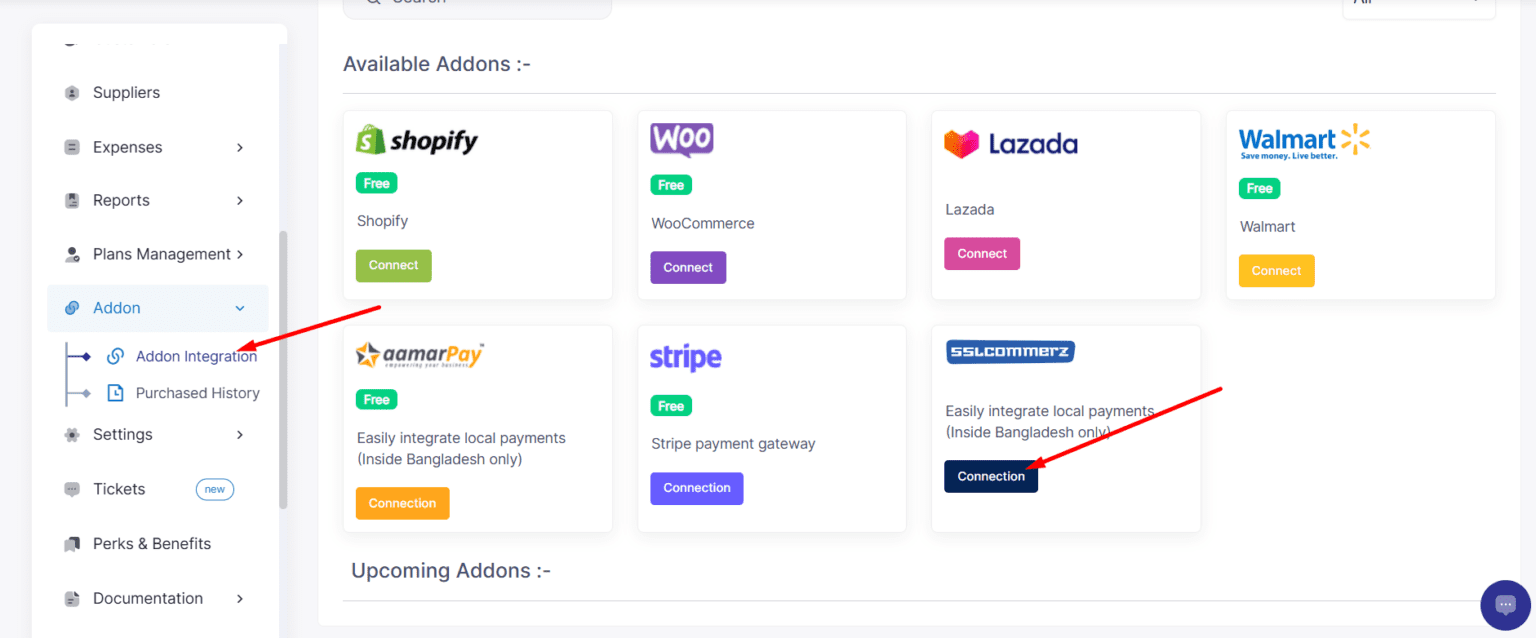
- A new dialog will appear where you can input your SSLCOMMERZ API credentials. It will be asked to provide your Store ID, Store Password and Sandbox.
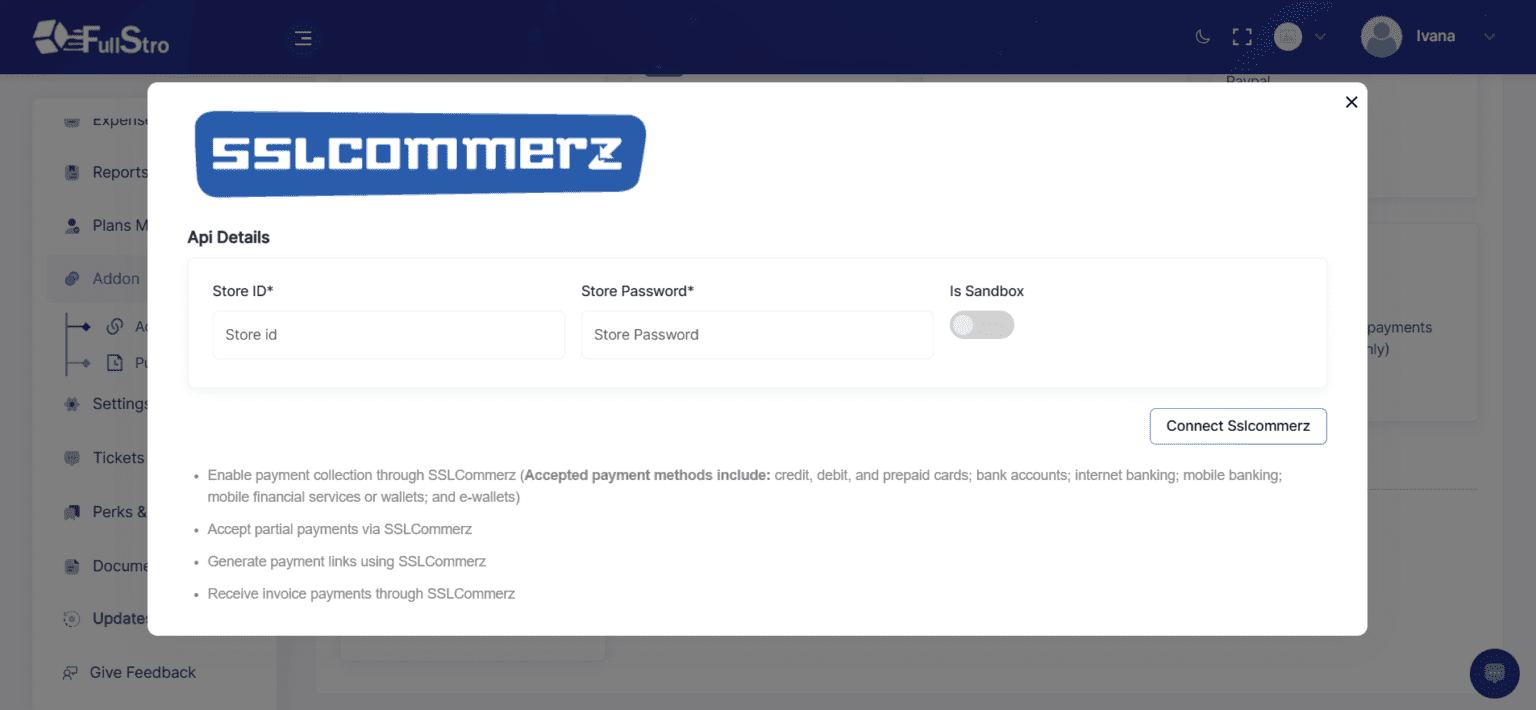
Note: Entering SSLCOMMERZ API Credentials
1. Store ID and Store Password:
- You will be prompted to enter your Store ID and Store Password provided by SSLCOMMERZ.
2. Sandbox Mode:
- Toggle the Is Sandbox option if you want to test the integration in a sandbox environment. This is helpful for verifying the setup without processing actual transactions.
- Ensure the Consumer setting is configured as Sandbox if you are running in test mode.
3. Save and Connect:
- Once all details are filled in, click on Connect SSLCOMMERZ to complete the setup.
Integrating bKash with FullStro’s API is a straightforward process. Follow these steps to enable seamless payment collection through bKash.
Step 1: Start the Connection
- Log in to your FullStro account.
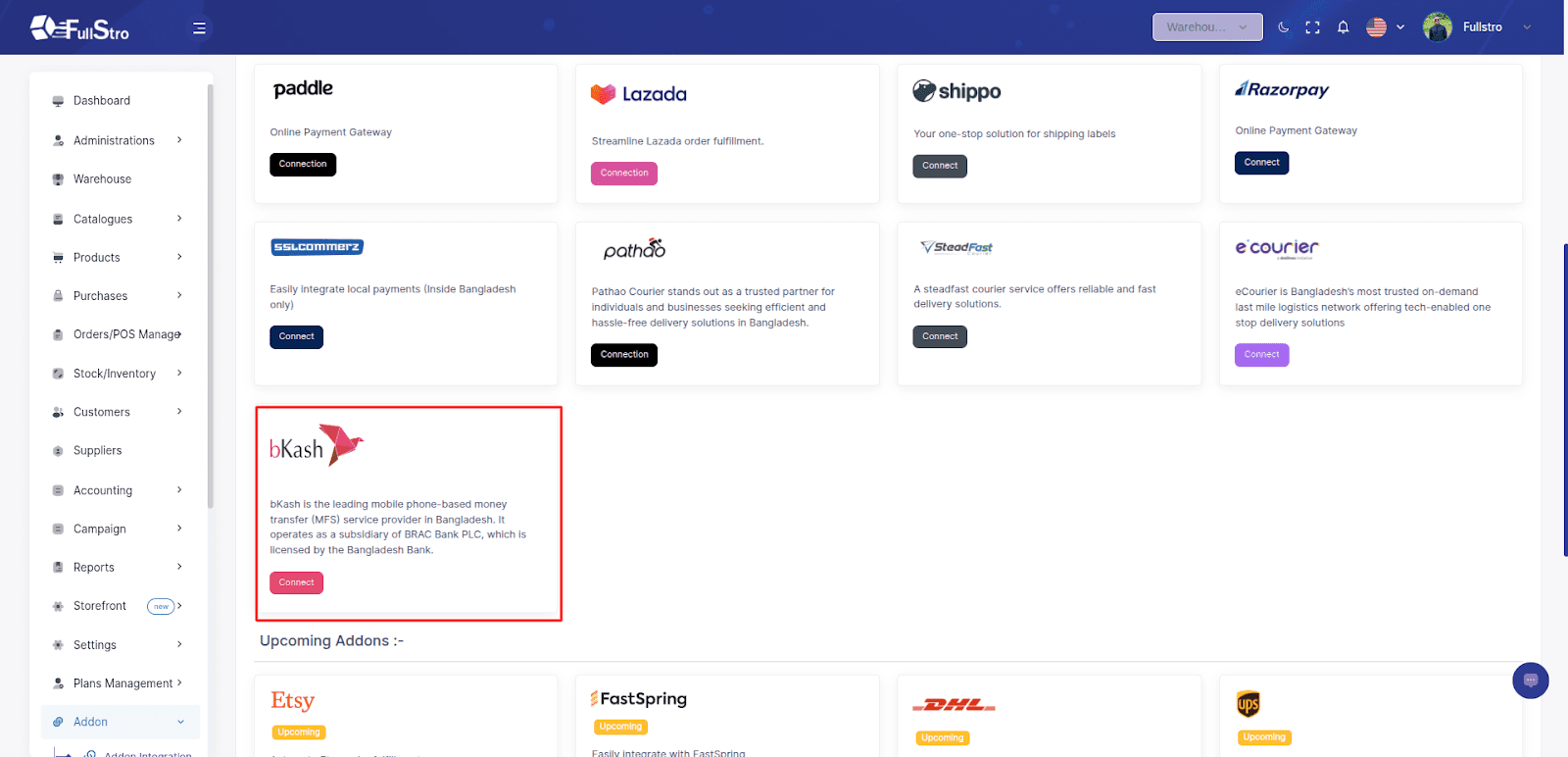
- Go to Addon > Addon Integration from the left panel.
- On the Addon Integration page, locate bKash and click the “Connect” button.
Step 2: Make the Payment
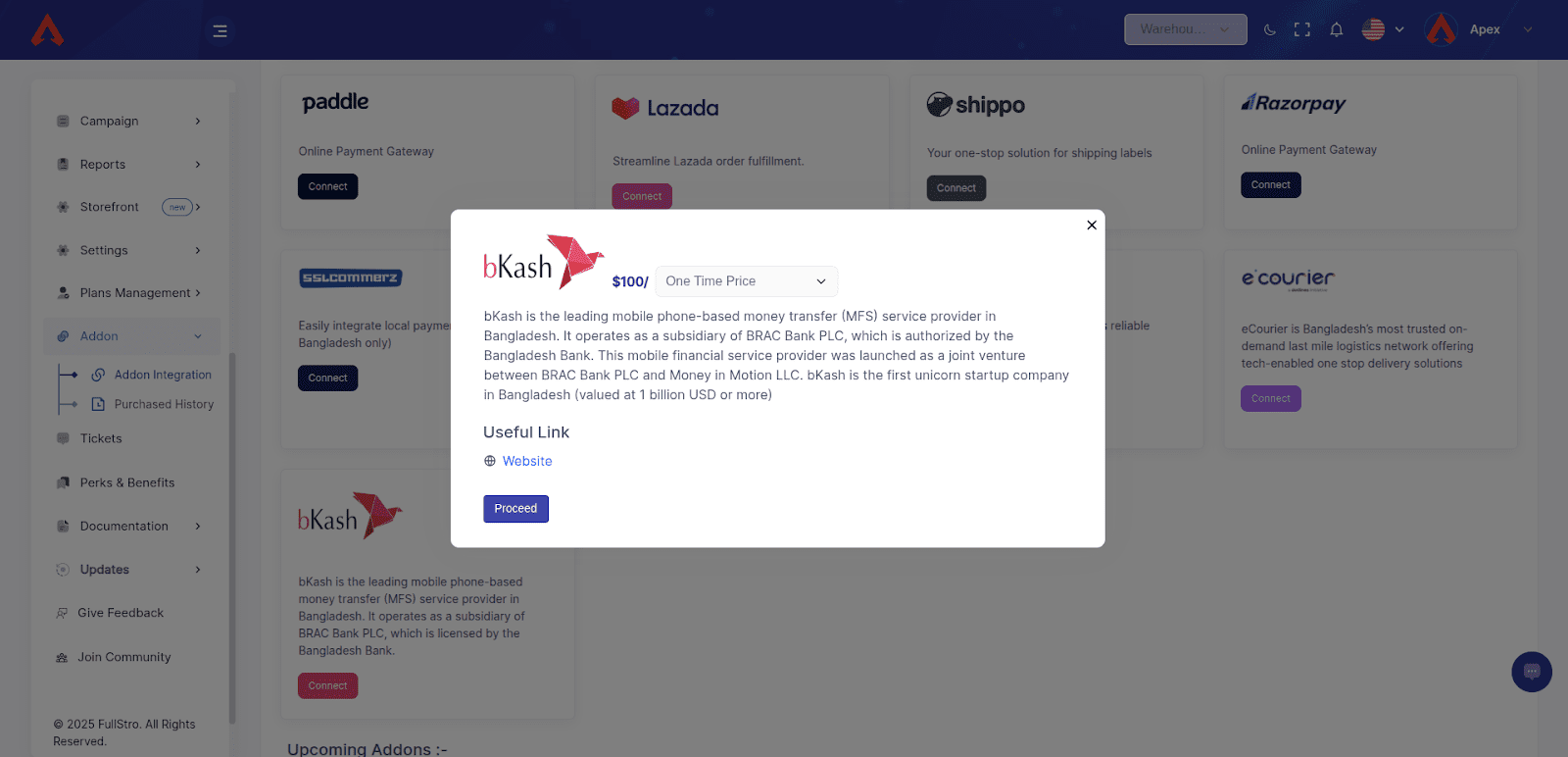
- A pop-up will appear prompting you for payment.
- Click “Proceed” to view payment details.
- Enter your payment information and complete the transaction for the bKash Addon.
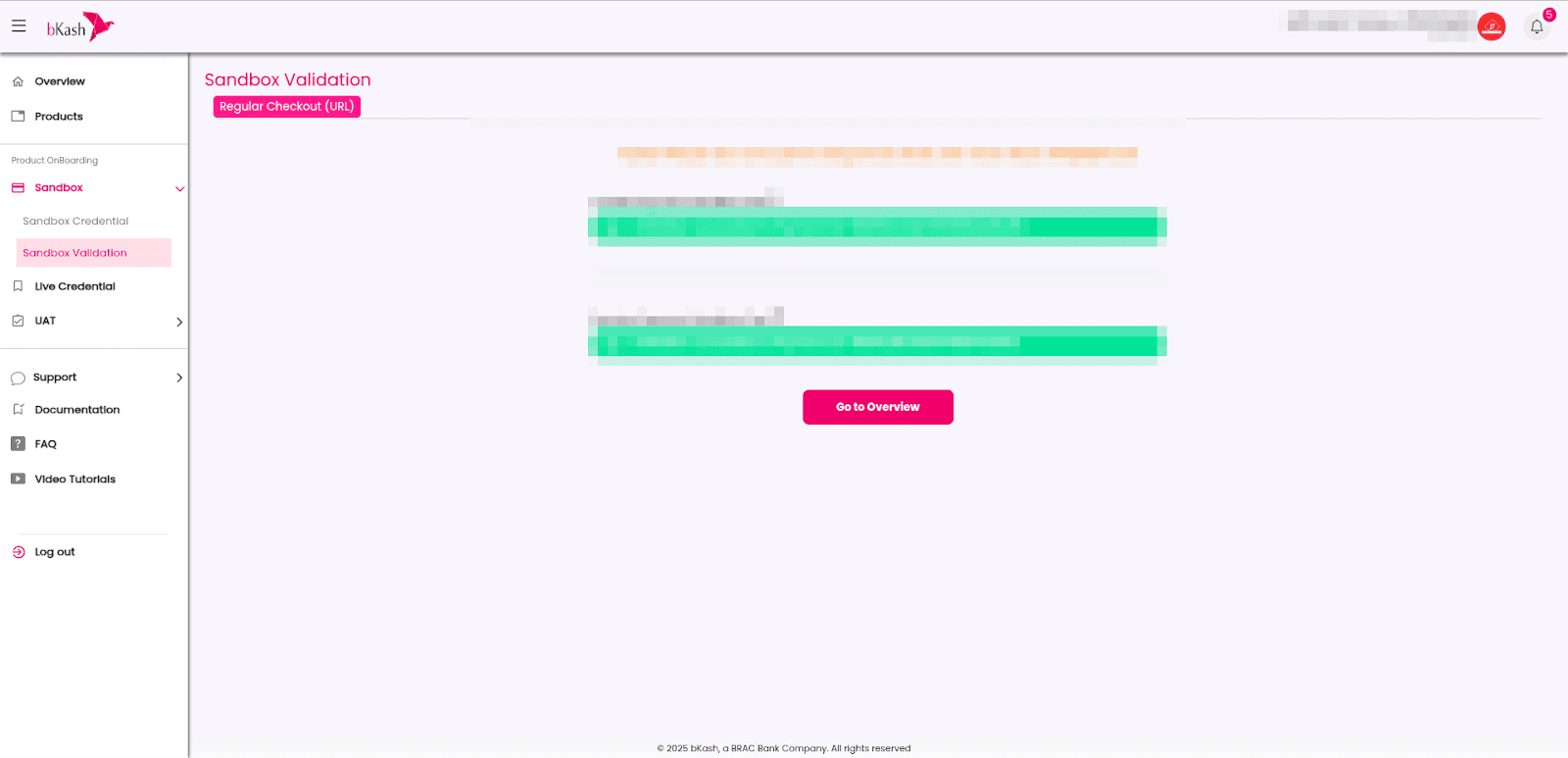
Step 3: Get Your API Credentials
- After payment, you’ll be asked to enter your bKash API Key.
- To get it:
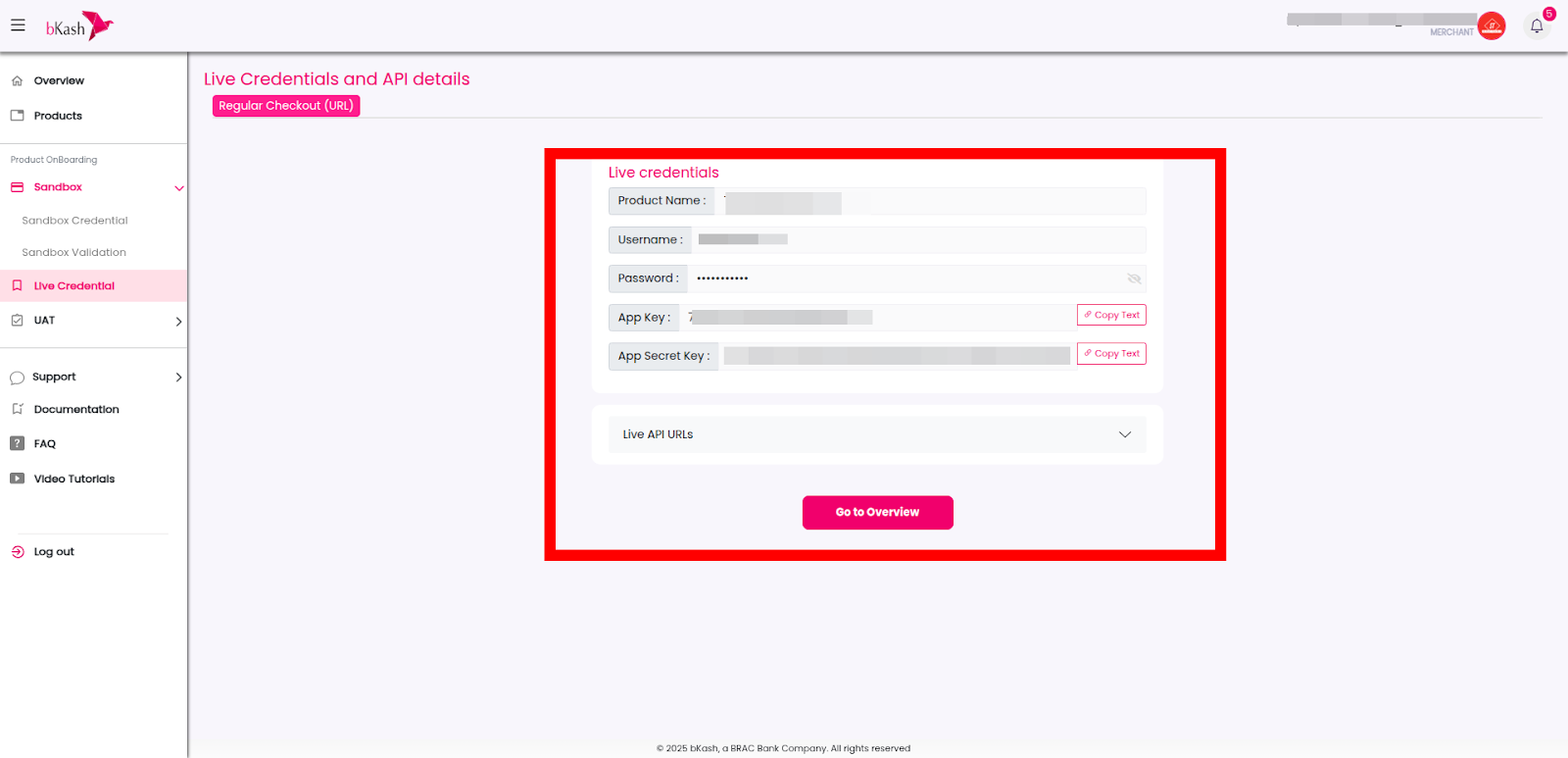
Once validated, you will receive your live API credentials.
Step 4: Finalize the Integration
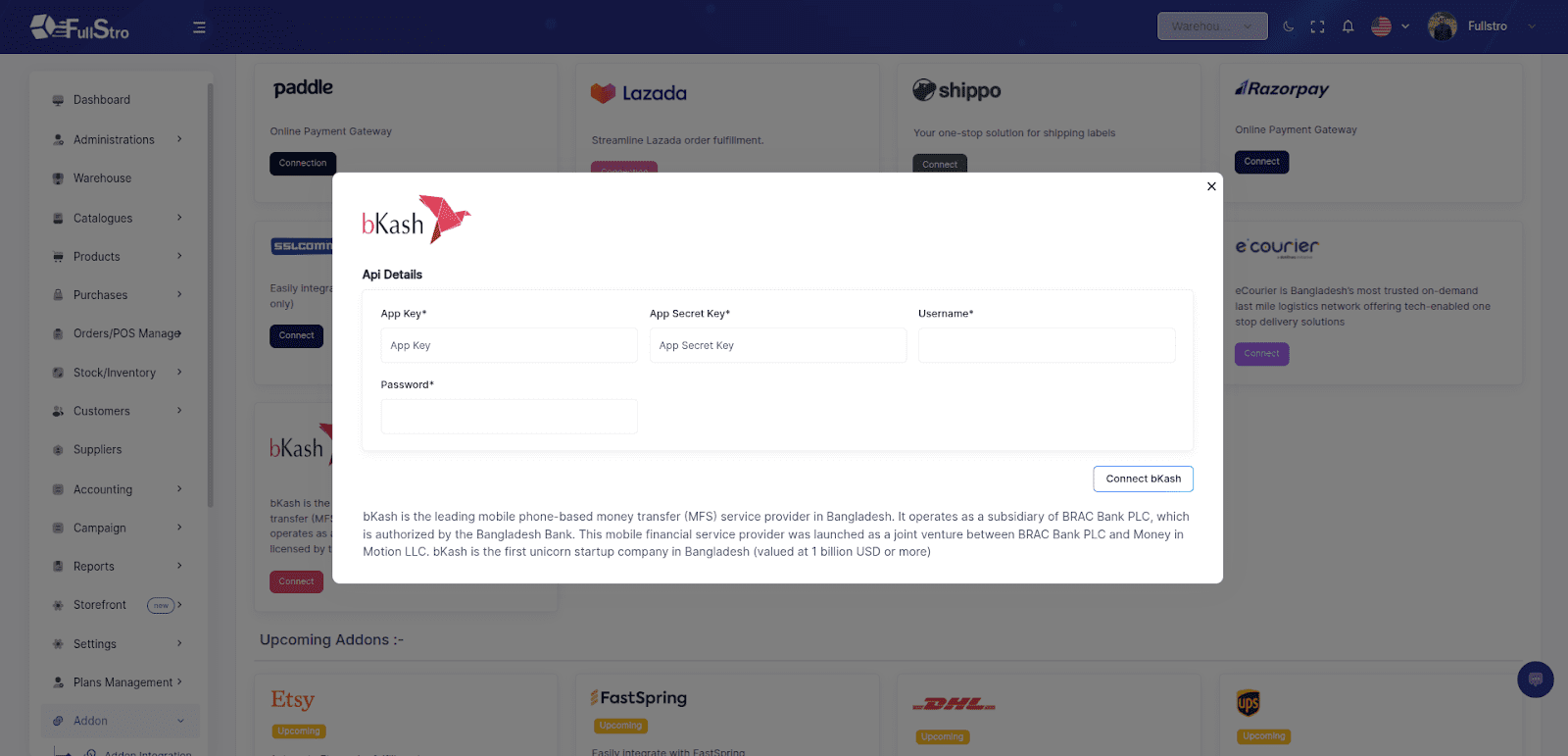
- Copy the live credentials from bKash.
Paste them into the FullStro bKash Addon configuration section
Step 5: Start Accepting Payments
Once the connection is complete, you can start collecting payments from customers directly through bKash after creating an invoice.
All Done!
You’ve successfully integrated bKash with FullStro. Now enjoy smooth and secure payment processing for your business.
The following guide will walk you through the process of connecting and configuring AamarPay to enable payment collection through your application.
- To connect AamarPay with your FullStro account, go to Addon > Addon Integration on the FullStro’s left panel. Now, you will see the Addon Integration dashboard showing available integrations. Click on the AamarPay “Connect” button.
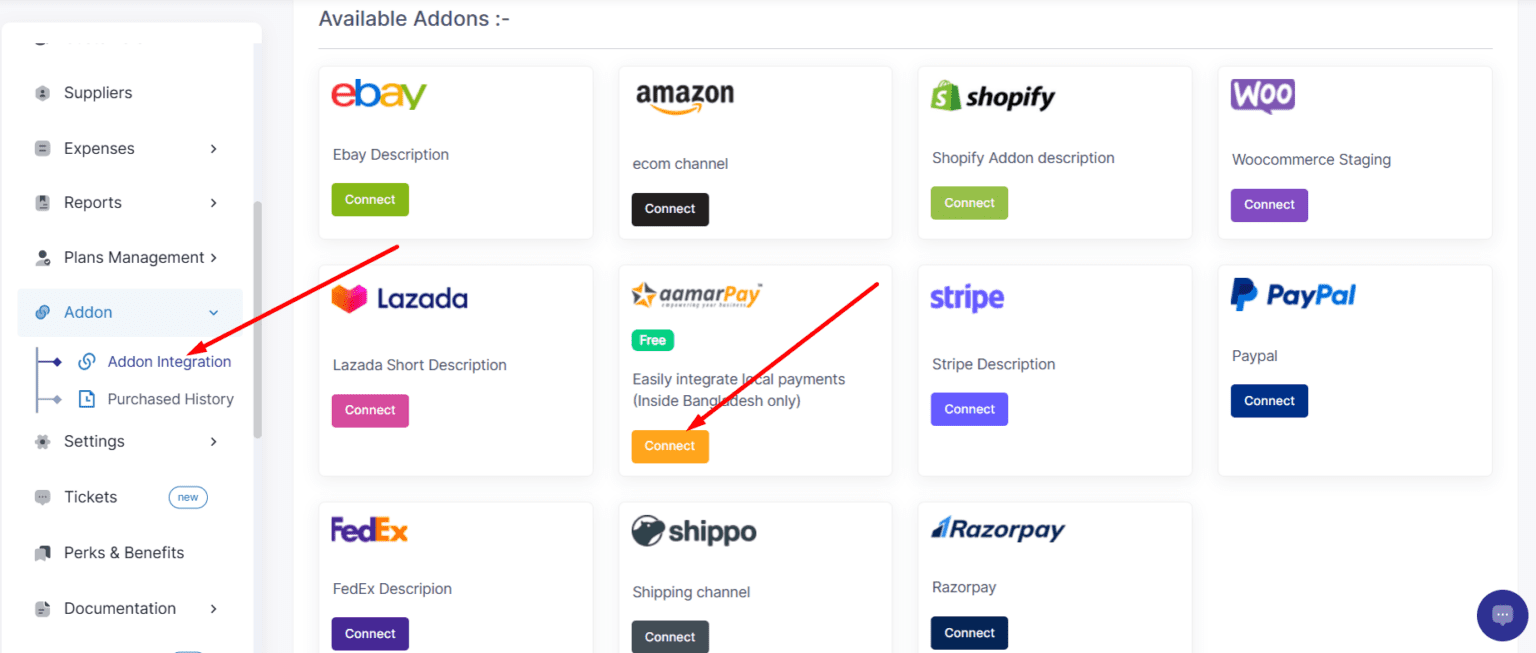
- A new dialog will appear where you can input your AamarPay API credentials. It will be asked to provide your Store ID, Store Password and Sandbox.
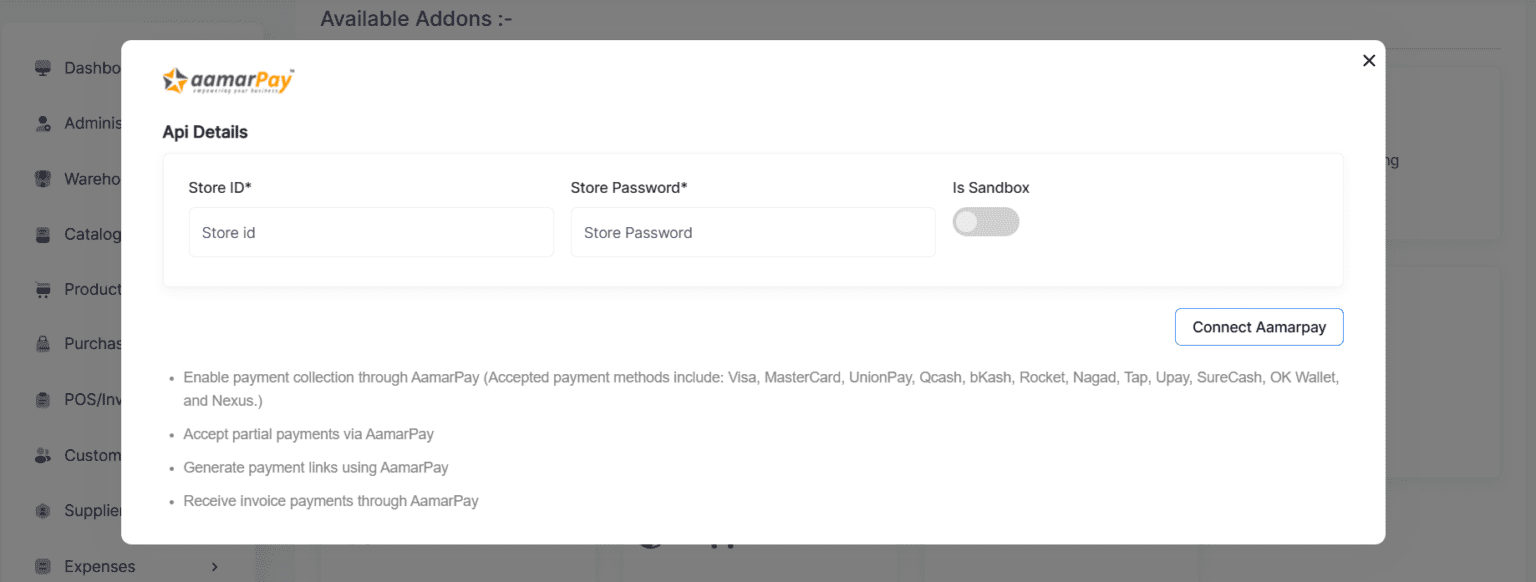
Note: Entering AamarPay API Credentials
1. Store ID and Store Password:
- You will be prompted to enter your Store ID and Store Password provided by AamarPay.
2. Sandbox Mode:
- Toggle the Is Sandbox option if you want to test the integration in a sandbox environment. This is helpful for verifying the setup without processing actual transactions.
- Ensure the Consumer setting is configured as Sandbox if you are running in test mode.
3. Save and Connect:
- Once all details are filled in, click on Connect AamarPay to complete the setup.




